
AI guide
How to Use an AI Presentation Maker Without Ending Up With Generic Slides
Learn how to turn a clear brief into a useful presentation draft, improve slide structure, and review AI-generated content before presenting it.
A good presentation starts with a clear audience and purpose
The hardest part of making a presentation is often not choosing a theme. It is deciding what the audience needs to understand, what should come first, and what can safely be left out. AI can help with that first structure, but it works much better when you give it a real brief.
A useful presentation draft should give you something to react to. It does not need to be perfect. It needs to make the next editing decision easier.
Begin with the audience
A presentation for senior management should not be structured the same way as a training deck for new employees. Before generating anything, decide who will see the slides and what they should know, decide or do after the presentation.
That information gives the generator a reason to prioritize some points and leave others in supporting detail.
Give the presentation a job
“Create a presentation about customer service” is broad. “Create an eight-slide presentation for new support agents explaining response standards, escalation rules and three examples of good customer communication” is much easier to turn into a useful deck.
The second prompt contains a purpose, audience, approximate length and the ideas that matter most.
Use generated slides as a first structure
An AI-generated outline can save time by proposing a beginning, middle and end. You may still remove a slide, combine two ideas, change the order or rewrite every title. That is normal.
In practice, it is often faster to improve a visible structure than to plan an entire deck from an empty file.
Avoid putting paragraphs on slides
Slides are usually easier to present when they carry the important message rather than the entire speech. Long paragraphs encourage the presenter to read from the screen and make it harder for the audience to identify the main point.
Use the generated draft to identify the idea of each slide, then shorten the visible text while keeping the explanation for your spoken delivery or notes.
Numbers and claims need verification
A polished slide can still contain a bad fact. Check percentages, company figures, dates, quotations, market claims and recommendations before presenting them.
If your prompt includes source material, compare important statements with that source rather than assuming the generated wording is exact.
Read the deck from beginning to end
Individual slides can look reasonable while the full deck feels repetitive or jumps between ideas. Once the first draft is generated, read only the slide titles in order. If the story makes sense from the titles alone, the overall structure is usually easier to follow.
A simple prompt structure that works
| Prompt detail | Example |
|---|---|
| Audience | Non-technical management team |
| Purpose | Explain why website conversions fell |
| Length | 6 to 8 slides |
| Important content | Traffic, funnel drop-off and three actions |
| Tone | Clear, practical and concise |
Try the presentation workflow
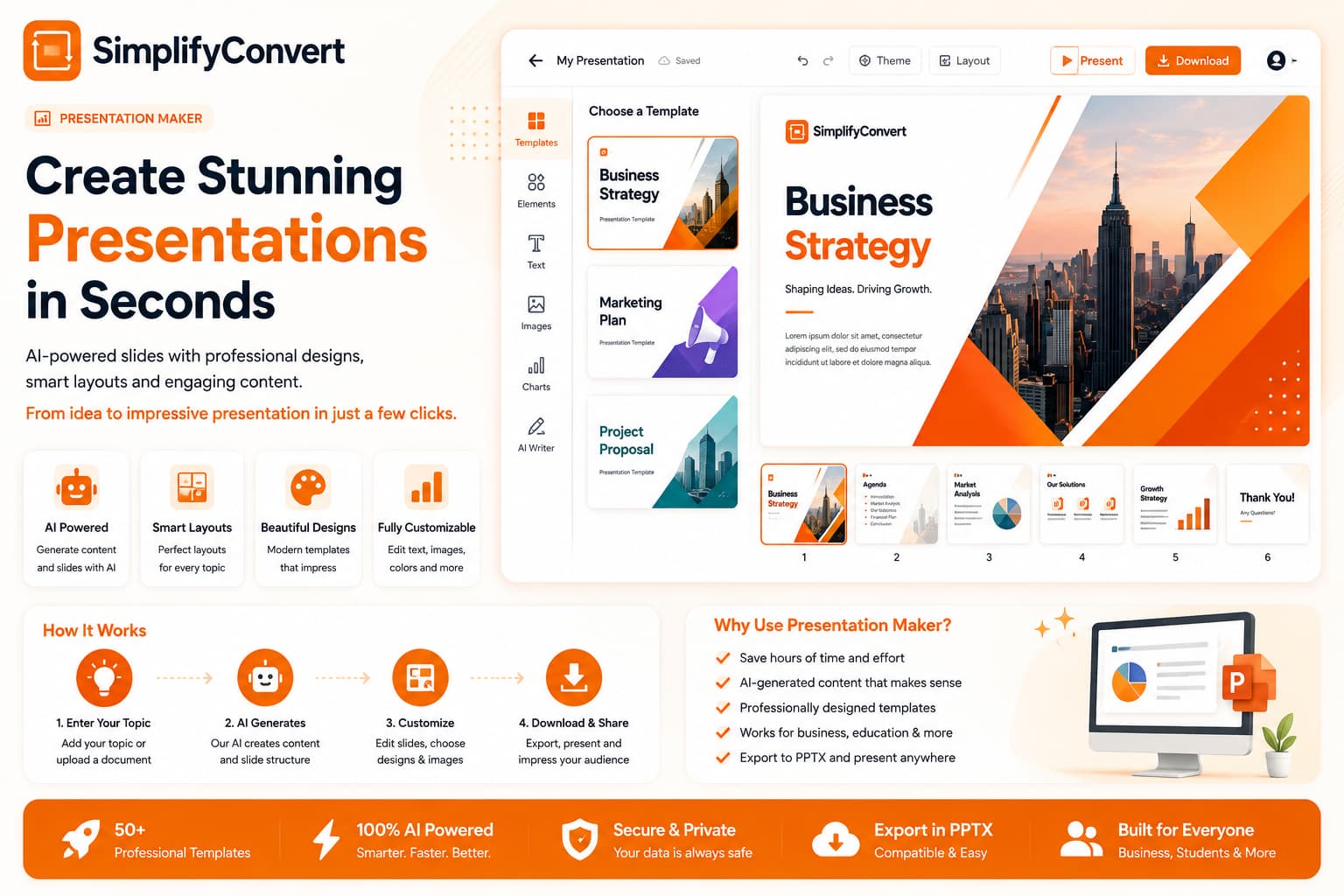
If you already know the audience and purpose of the deck, open the SimplifyConvert AI Presentation Maker and use that brief to create a starting version. Then edit the result until it sounds like a presentation you would actually give.