
AI guide
AI Spreadsheet Maker: Build a Better Spreadsheet by Describing the Job First
Learn how to generate a practical spreadsheet structure for budgets, trackers, inventories and planning, then review formulas and data before using it.
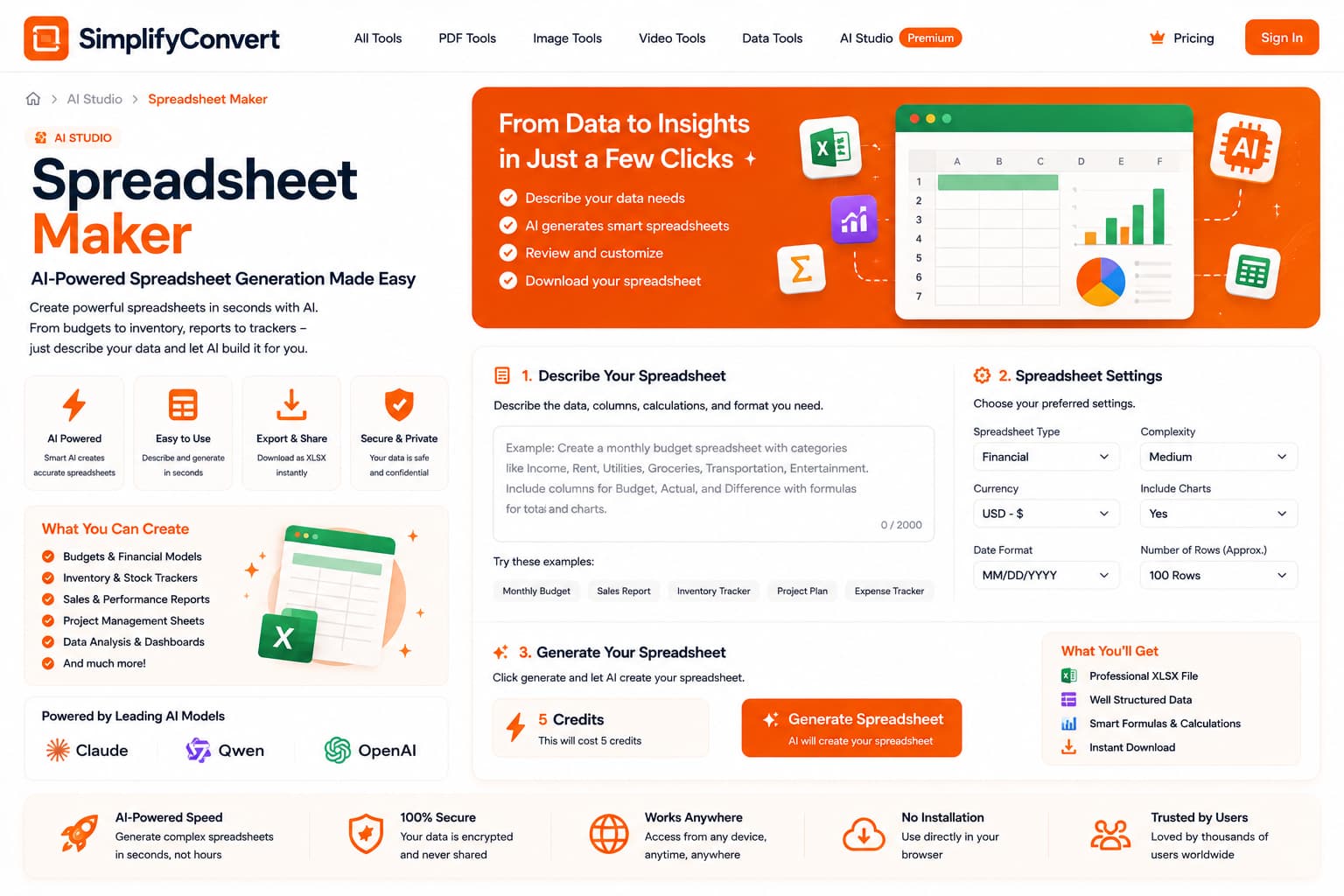
Describe the workflow the spreadsheet must support, not just the columns
A spreadsheet is easiest to build when you know what decision or routine it needs to support. The columns come later. First decide what people will enter, what they need to calculate, and what they should be able to understand at a glance.
An AI spreadsheet maker can help turn that workflow into an initial structure, but the finished sheet still needs to be checked like any other operational tool.
Describe the workflow instead of listing random columns
“Create an expense spreadsheet” leaves many questions unanswered. “Create a monthly business expense tracker with date, vendor, category, payment method, tax, amount and monthly totals” gives the generator a much clearer model of how the sheet will be used.
The same principle works for task tracking, inventory, lead management, budgets and project planning.
Separate information people enter from information the sheet calculates
A well-designed spreadsheet distinguishes input cells from calculated results. If users enter quantity and unit price, for example, the total should normally be calculated rather than typed manually on every row.
When reviewing an AI-generated workbook, identify which columns are inputs, which contain formulas, and whether that logic matches the actual workflow.
Test formulas with simple numbers
A formula can look convincing while referencing the wrong column or range. Before trusting a generated spreadsheet, enter a few values where you already know the expected result.
Simple tests make formula mistakes easier to spot than reviewing a large table filled with realistic but unfamiliar data.
Think about what happens after the first month
A spreadsheet that works with ten rows may become awkward with a thousand. Consider how new records will be added, whether categories stay consistent, and whether formulas automatically extend when more data appears.
If the sheet will be reused every month, design for that repetition from the beginning.
Dates, money and percentages need the right meaning
Formatting is not merely decorative. A value displayed as currency is easier to interpret as money. Dates should be unambiguous for the people using the file. Percentages need consistent underlying values so totals and formulas behave correctly.
Avoid collecting information nobody will use
It is tempting to add extra columns because they might be useful later. Every additional field creates more work for the person maintaining the sheet. Keep fields that support a real calculation, filter, decision or reporting need.
Good spreadsheet prompts describe real jobs
| Weak request | More useful request |
|---|---|
| Make a budget | Monthly household budget with income, fixed costs, variable costs and remaining balance |
| Make a tracker | Project tracker with owner, status, priority, due date and overdue flag |
| Make an inventory sheet | Inventory tracker with SKU, current stock, reorder level, supplier and reorder status |
Build a spreadsheet starting point
If you can describe the job the workbook needs to perform, try the SimplifyConvert AI Spreadsheet Maker. Generate the structure, test the important calculations, and adjust the workbook until it fits the way you actually work.