
Platform guide
A Practical Guide to SimplifyConvert Online Tools
Explore SimplifyConvert tools for PDFs, images, videos, data, documents and everyday file tasks, and learn how to choose the right tool for the job.
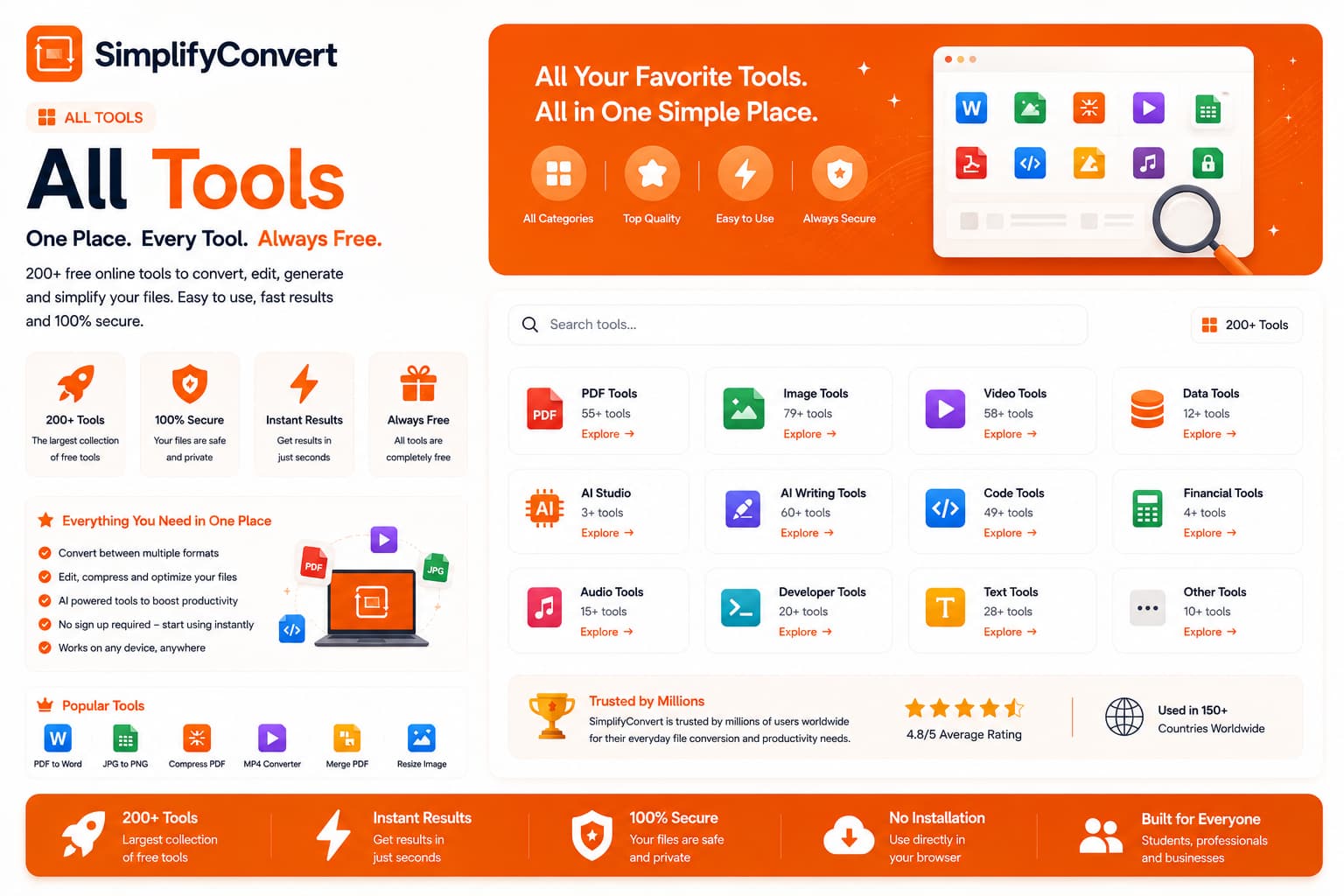
Find the tool that matches the task you actually need to complete
A file can be perfectly fine and still be wrong for the job in front of you. A photo may be too large to upload. A PDF may contain the right pages in the wrong order. A spreadsheet may need to become CSV before another application can read it. These are small problems, but they can interrupt work surprisingly quickly.
SimplifyConvert groups these everyday jobs into focused online tools. The useful part is not simply having many tools in one place. It is being able to choose an operation based on what you actually need to change.
Start by describing the problem in plain language
Before choosing a converter, ask yourself what is wrong with the current file. Do you need a different format? A smaller file? Different dimensions? Fewer pages? A transparent background? Or are you trying to create something that does not exist yet?
That simple question prevents a common mistake: converting a file when conversion is not actually the solution. If a JPG is too large for a website, for example, converting it to PNG may make the file larger. Compression or resizing would usually be the more relevant operation.
PDF tasks are usually about documents or pages
PDFs often need more than format conversion. You might receive several documents that belong together, need to remove unnecessary pages, reduce an attachment before emailing it, or add information to an existing document.
In those situations, start with the PDF Tools collection rather than searching for a generic converter.
Image tasks often involve more than the format
Images have several characteristics that can change independently: format, dimensions, file size, transparency and visible content. That is why “make this image suitable for my website” can mean very different things depending on the original file.
The Image Tools section is useful when you need to convert an image, reduce its size, resize it, work with its background or perform another visual operation.
Video files need a little more patience
Video files can be much larger than images and documents. Their size is influenced by duration, resolution, bitrate, frame rate, codec and audio. As a result, video conversion and compression can take longer than a simple document operation.
If the task involves video, browse the Video Tools collection and choose the operation that matches the result you need.
Data conversion is about structure, not appearance
CSV, JSON, XML and Excel files can all contain data, but they organize that data differently. A spreadsheet may contain multiple sheets, formulas and formatting, while CSV is essentially a flat table. JSON, meanwhile, can represent nested structures that do not fit naturally into rows and columns.
When moving information between systems, use Data Tools and inspect the converted result before importing it somewhere else.
Some jobs begin with an idea instead of a file
A converter transforms something you already have. AI-assisted creation is different: you provide instructions and generate a new starting point. SimplifyConvert separates those workflows into AI Studio rather than treating them like ordinary file conversions.
You can explore AI Studio when you want to create a presentation, document or spreadsheet from a prompt.
A quick way to choose the right category
| What you have | What you need | Where to start |
|---|---|---|
| Merge, split, edit, sign or compress | PDF Tools | |
| Photo or graphic | Convert, resize, compress or edit | Image Tools |
| Video | Convert, compress or modify | Video Tools |
| Structured data | Move between data formats | Data Tools |
| An idea or prompt | Create a new file | AI Studio |
When you are not sure where a tool belongs
You do not need to memorize the categories. Open the complete All Tools directory and look for the task in the language you would normally use to describe it. The goal is to get from the problem to the appropriate workflow with as little unnecessary processing as possible.