
Images guide
How to Compress an Image Without Making It Look Bad
Learn what actually reduces image file size, how compression differs from resizing, and how to balance quality with practical upload and website requirements.
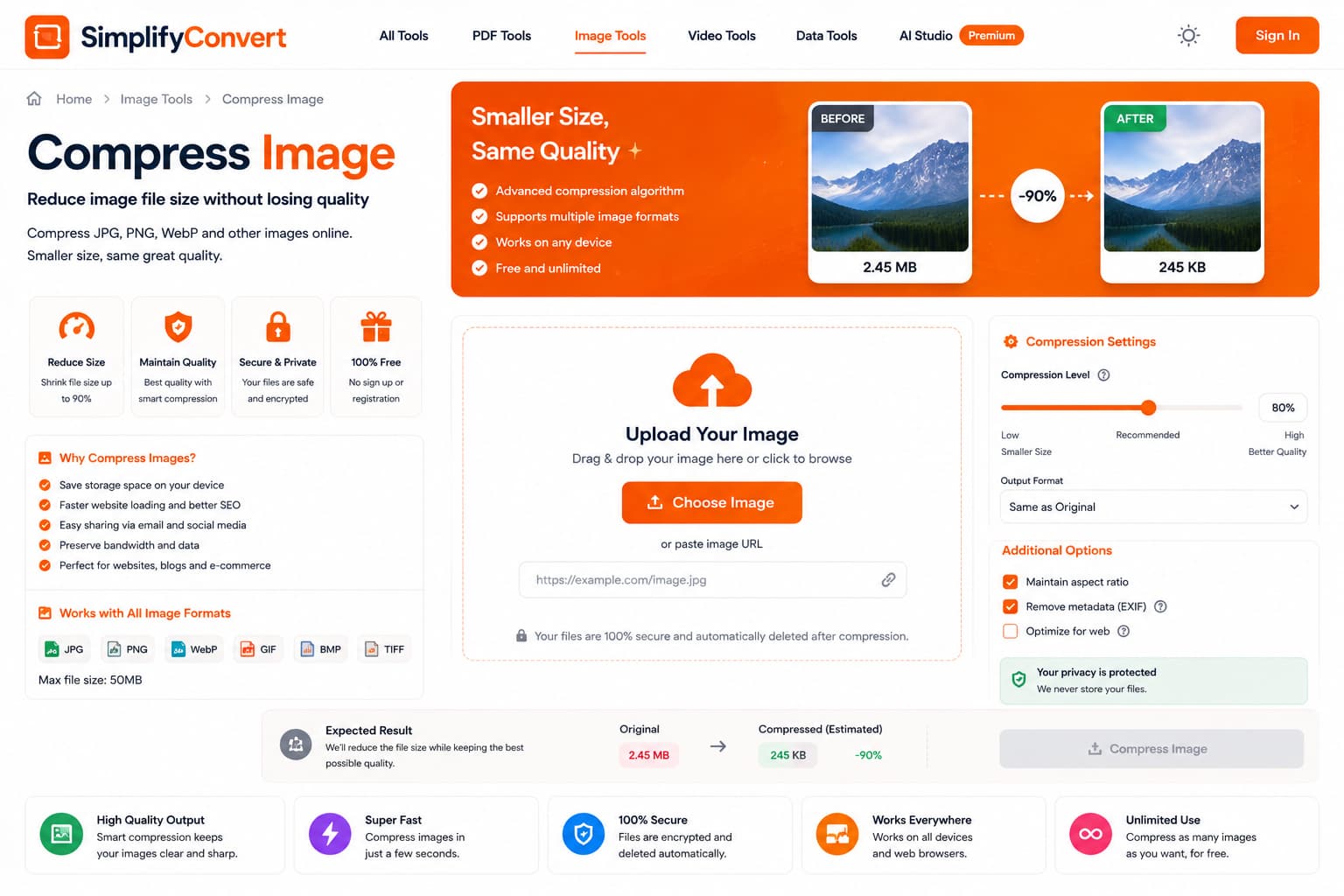
The best compressed image is small enough for the job and still looks right
Image compression usually becomes important at the least convenient moment: a website rejects an upload, an email attachment is too large, or a page loads slowly because one photograph weighs several megabytes. The instinct is often to make the file as small as possible. That is not always the best target.
A useful compressed image is small enough for its destination while still looking good at the size people will actually see it.
Compression and resizing are not the same thing
Compression changes how efficiently the image data is stored. Resizing changes the number of pixels in the image. Both can reduce file size, but they solve different problems.
If a photograph is 5000 pixels wide but will only appear at 900 pixels on a website, reducing its dimensions may save more space than applying aggressive compression to the oversized original.
The original image content affects how well it compresses
A simple graphic with large flat areas behaves differently from a photo containing grass, hair, texture and fine shadows. Detailed scenes are harder to simplify without visible changes because there is more visual information to preserve.
That is why the same quality setting can produce very different file sizes for two images with identical dimensions.
Lower quality settings are not automatically better
Lossy image compression reduces size partly by discarding information the encoder considers less important. Moderate compression can be hard to notice. Push it too far and edges may become rough, blocks can appear around details, and smooth gradients may start to break apart.
The practical approach is to reduce size until the file meets its real requirement, then stop before the visible tradeoff becomes distracting.
Think about where the image will be seen
A small marketplace thumbnail does not need the same source dimensions as a photograph intended for a large display. Likewise, an image sent for printing should not be optimized using the same assumptions as a small web asset.
Compression makes more sense when you know the destination first.
Website images often benefit from both resizing and compression
Uploading a camera-sized photograph and relying only on browser CSS to display it smaller still leaves the visitor downloading the large file. Preparing the pixel dimensions for the expected display size and then applying sensible compression can produce a much more efficient result.
Watch the areas where compression artifacts appear first
Faces, text, logos, thin lines and sharp edges deserve a close look. These are often the places where quality loss becomes obvious before the rest of the image looks noticeably different.
Zooming into every pixel is not always useful, though. Also inspect the image at the approximate size your audience will see it.
A simple compression workflow
- Check the destination's file-size and dimension requirements.
- Resize the image first if the original dimensions are unnecessarily large.
- Apply moderate compression.
- Compare the result with the original at normal viewing size.
- Check faces, text, logos and fine details.
- Keep the compressed copy only when the quality remains suitable.
Try an image compression workflow
Browse SimplifyConvert Image Tools when you need to reduce an image for uploading, sharing or web use. Aim for a sensible balance rather than chasing the smallest possible number of kilobytes.