
Platform guide
How SimplifyConvert Works: A Guide to Online File and AI Tools
Learn how SimplifyConvert handles conversion, compression, editing, data workflows, and AI-assisted file creation from one online platform.
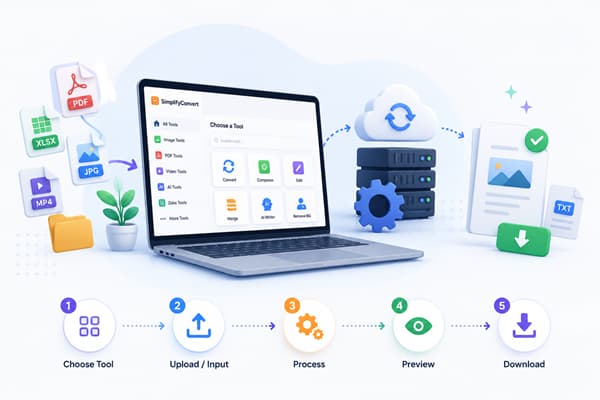
Choose the operation first, then choose the tool
SimplifyConvert brings file conversion, editing, compression, data utilities, and AI-assisted creation into one browser-based workspace. Instead of installing a separate application for every small task, you can choose the operation you need, provide the required input, review the available settings, process the file, and download the result.
The basic SimplifyConvert workflow
Most tools follow a straightforward sequence. First, choose a tool that matches the job you actually need to perform. For example, converting an image format is different from reducing its file size, and merging PDF pages is different from editing content inside a PDF.
- Choose the right tool. Browse the relevant category or use the All Tools directory to locate a converter, editor, compressor, utility, or AI workflow.
- Provide the input. Depending on the tool, this may be a PDF, image, video, spreadsheet, data file, text prompt, or another supported format.
- Review available settings. Some operations need only one click, while others expose controls such as dimensions, quality, output format, page selection, or editing options.
- Process the task. SimplifyConvert sends the input through the workflow required by that particular tool.
- Review and download the result. Where a preview is available, check the result before saving it to your device.
Start with the problem, not the file extension
Two files with the same extension can require completely different operations. A JPG that is too large for a website may need compression or resizing, while another JPG may need its background removed. A PDF might need page merging, compression, text editing, or a signature.
Identifying the task first helps avoid unnecessary conversions and repeated processing. When possible, keep the original file available so you can return to it if the first output does not suit your needs.
PDF tools
PDF workflows cover several different kinds of work. Page-organization tools can combine or separate documents, compression tools target file size, and editing tools work with visible page content.
Browse the PDF Tools category when working with documents that need merging, conversion, compression, editing, signing, or related PDF operations.
Image tools
Image tasks often involve a tradeoff between appearance, dimensions, transparency, format compatibility, and file size. Converting JPG to PNG does not automatically improve image detail, and compressing an image is different from changing its pixel dimensions.
The Image Tools collection includes converters as well as resizing, compression, background, enhancement, and visual-editing utilities.
Video tools
Video processing can involve considerably more data than a document or image. Resolution, duration, bitrate, frame rate, codec, and audio all influence processing time and output size.
Use the Video Tools area for supported conversion, editing, compression, and other video-related workflows.
Data conversion tools
Data formats are not interchangeable containers with identical capabilities. CSV represents a flat table, Excel can preserve workbook features, and JSON can represent nested objects and arrays. Converting between them may therefore require decisions about how structure and data types should be represented.
Browse Data Tools when preparing CSV, JSON, XML, Excel, or related structured data for a different destination.
AI Studio works differently from a normal converter
Traditional conversion tools begin with an existing file and transform it. AI Studio begins with instructions and uses an AI workflow to create new material. That distinction matters because generated content should be reviewed rather than treated as automatically correct.
SimplifyConvert AI Studio currently includes workflows for creating presentations, documents, and spreadsheets. You can explore them from AI Studio.
What happens when a tool needs more settings?
Some tasks cannot be represented by a single Convert button. An image compressor may need a quality setting. A resize operation needs target dimensions. A PDF editor needs interactive controls for placing and transforming content.
SimplifyConvert exposes those settings when they materially affect the result, while simpler conversions can remain intentionally straightforward.
Choosing between conversion, compression, editing, and creation
| Goal | Typical operation | Example |
|---|---|---|
| Change file representation | Convert | JPG to PNG |
| Reduce storage or transfer size | Compress | Compress Image |
| Change visible content | Edit | Edit PDF |
| Reorganize existing content | Merge or split | Merge PDF |
| Generate new material from instructions | AI creation | Presentation Maker |
A practical way to explore SimplifyConvert
If you already know the job you need to perform, open its category directly. If you are not sure which category contains it, start with the All Tools directory. It provides one place to discover the available converters, editors, utilities, and AI-assisted workflows.