
Images guide
Image Tools Explained: Convert, Compress, Resize and Edit Images
Understand common image tasks including format conversion, compression, resizing and background editing so you can choose the right workflow.
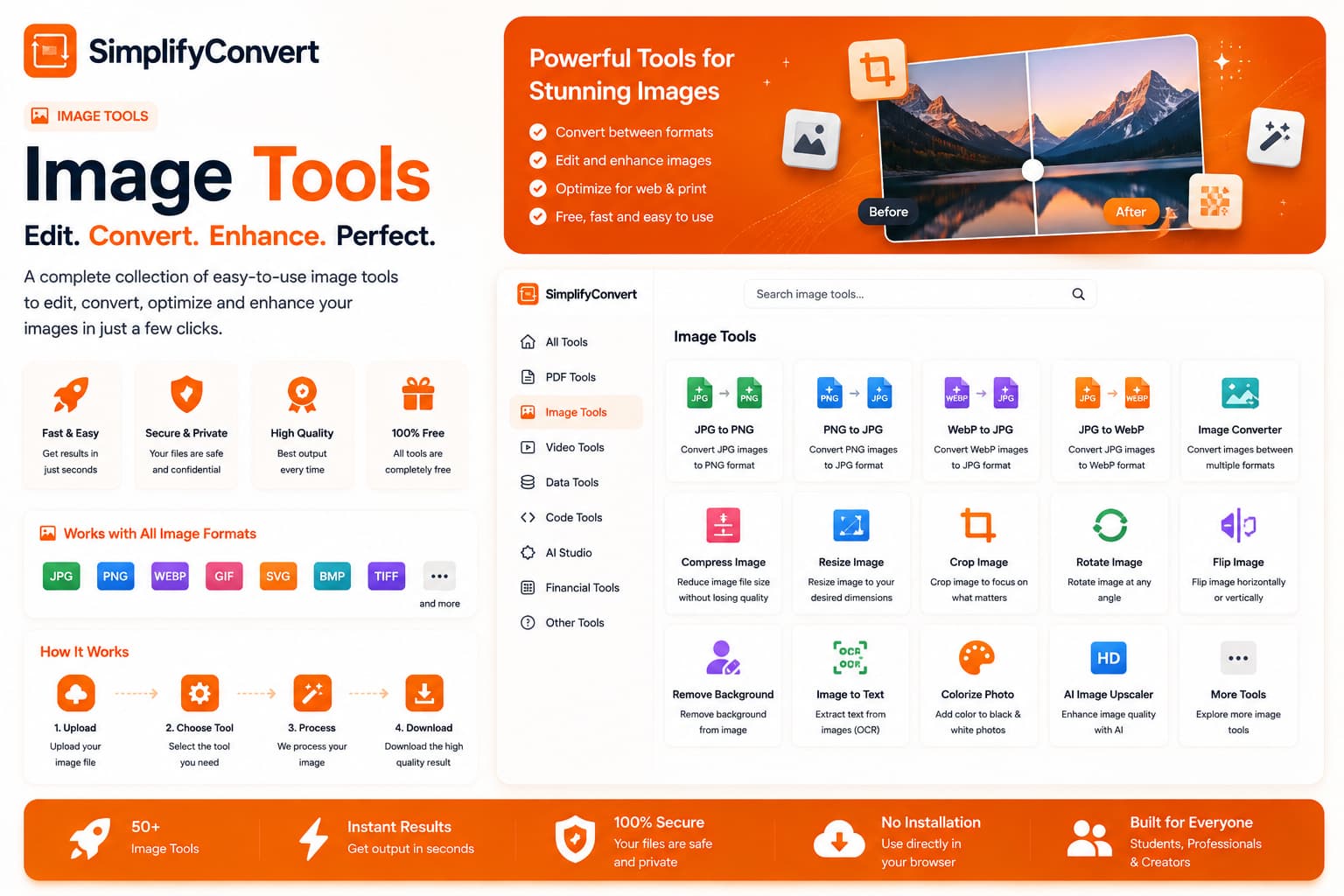
Choose an image operation based on what needs to change
Image editing becomes much easier once you separate four things that people often mix together: format, dimensions, file size and visible content. Changing one does not automatically fix the others.
A photo can have the correct dimensions but still be too large to upload. A PNG can support transparency but still contain an opaque background. A JPG can be converted to PNG without gaining any new detail. Knowing what actually needs to change helps you choose the right tool the first time.
Convert an image when you need a different format
Format conversion is useful when a website, application or workflow expects a particular file type. JPG is widely used for photographs, while PNG is useful when lossless storage or transparency support is important. Other formats make different tradeoffs between compatibility, features and file size.
Conversion changes how the image is encoded. It does not recreate detail that was already lost in the source image.
Compress when the image is too heavy
Large images can slow websites, take longer to upload and exceed attachment limits. Compression aims to reduce the number of bytes required to store the image.
The useful target is not always the smallest possible file. Excessive compression can introduce visible artifacts. A better goal is a file that is small enough for its destination while still looking acceptable at the size people will actually view it.
Resize when the pixel dimensions are wrong
A 4000-pixel-wide photograph may be unnecessary if it will only appear as a small website thumbnail. Resizing changes the image dimensions and can also reduce file size because fewer pixels need to be stored.
When resizing, preserve the aspect ratio unless you intentionally want to stretch the image. Cropping is often a better solution when the destination requires a different shape.
Remove a background when the subject needs to stand alone
Product photos, profile images and design assets sometimes need the subject separated from its background. That is a content-editing task, not simply a format conversion.
Fine details such as hair, fur, translucent objects and soft shadows can make background removal more difficult. Always inspect the edges of the processed image rather than judging it only from a small preview.
Transparency requires a format that can preserve it
If you remove a background and need the empty area to remain transparent, the output format must support transparency. Saving that result to a format without suitable transparency support can replace those areas with a solid background.
Cropping and resizing solve different problems
Resizing changes the dimensions of the whole image. Cropping removes part of the frame. If a landscape photograph needs to become a square profile picture, simply forcing it into square dimensions can distort faces and objects. Cropping the composition first is usually more natural.
Choose the operation by looking at the problem
| Problem | Operation to consider |
|---|---|
| The destination requires another format | Convert |
| The image file is too large | Compress |
| Width or height is unsuitable | Resize |
| The composition needs a different shape | Crop |
| The subject needs to be isolated | Remove background |
Explore SimplifyConvert Image Tools
If you know whether the problem is format, size, dimensions, background or visible content, choosing a tool becomes much simpler. Browse the Image Tools collection to find the workflow that matches the change you actually need.