
PDF guide
How to Merge PDF Files Without Losing Track of Page Order
Learn how to prepare multiple PDFs for merging, choose the correct page order, check the finished document, and avoid common document-combining mistakes.
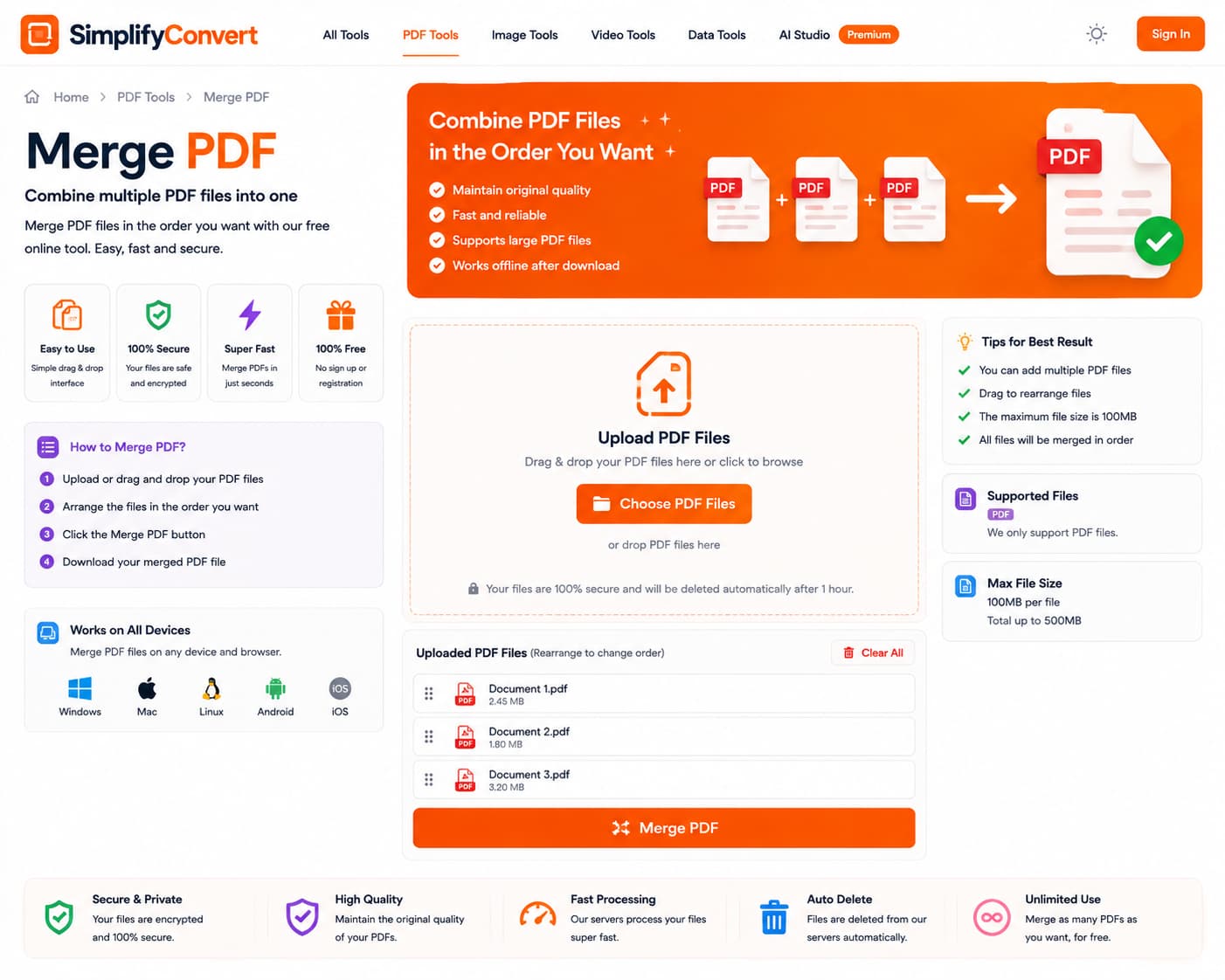
A good merged PDF should feel like one intentional document
Merging PDFs sounds like one of the simplest document tasks: choose a few files and combine them. Technically, that may be all it takes. The part that usually deserves attention is everything around the merge: file order, page order, duplicate pages and whether the final document still reads naturally from beginning to end.
A successful merged PDF should feel like one intentional document, not a stack of unrelated files placed together.
Decide the final order before merging
If you are combining an application form, supporting document and receipt, decide which one the reader should see first. File names do not always reflect the order that makes sense inside the finished PDF.
A minute spent arranging the inputs can save you from producing the correct pages in the wrong sequence.
Open each source PDF before combining it
This sounds obvious, but it catches many simple mistakes. Check that the file opens, that it contains the pages you expect, and that you did not accidentally select an older copy.
If two files have nearly identical names, preview them rather than relying on the filename alone.
Watch for duplicate cover pages and attachments
Documents assembled from emails or downloaded systems sometimes include repeated title pages, terms pages or attachments. A merge tool will not necessarily know that a page is duplicated intentionally or by accident.
Review the sources first if a clean final document matters.
Different page sizes can coexist
PDFs can contain pages with different dimensions and orientations. Combining a landscape report with portrait letters does not necessarily require resizing either one.
The result may be perfectly valid, but it is worth checking how the transition feels when the document is viewed or printed.
Merging does not automatically reduce file size
Combining several PDFs usually creates a file containing the material from all of them. If the finished document is too large for email or an upload portal, compression may be a separate step after the merge.
Do not assume combining files and compressing them are the same operation.
Think about bookmarks, forms and interactive content
PDFs can contain more than visible page content. Depending on the source and the processing workflow, bookmarks, interactive form behavior or other document features may need additional checking afterward.
For important business or administrative documents, test the final PDF rather than assuming every interactive feature survived unchanged.
A useful pre-merge checklist
- Open every source PDF.
- Confirm that you selected the latest version of each file.
- Decide the final file order.
- Check for duplicate or unnecessary pages.
- Merge the files.
- Open the result and move through it from first page to last.
- Check the final file size if it must be uploaded or emailed.
Merge when combining is genuinely the task
If the documents simply need to become one file, merging is the direct solution. If pages need changing, use editing tools. If the finished file is too large, consider compression separately.
Browse SimplifyConvert PDF Tools to choose the PDF operation that matches the problem rather than repeatedly transforming the document unnecessarily.