
PDF guide
PDF Tools Explained: Choosing the Right Tool for Your Document
Learn when to merge, split, compress, convert, edit or sign a PDF and how to choose the right PDF workflow for your document.
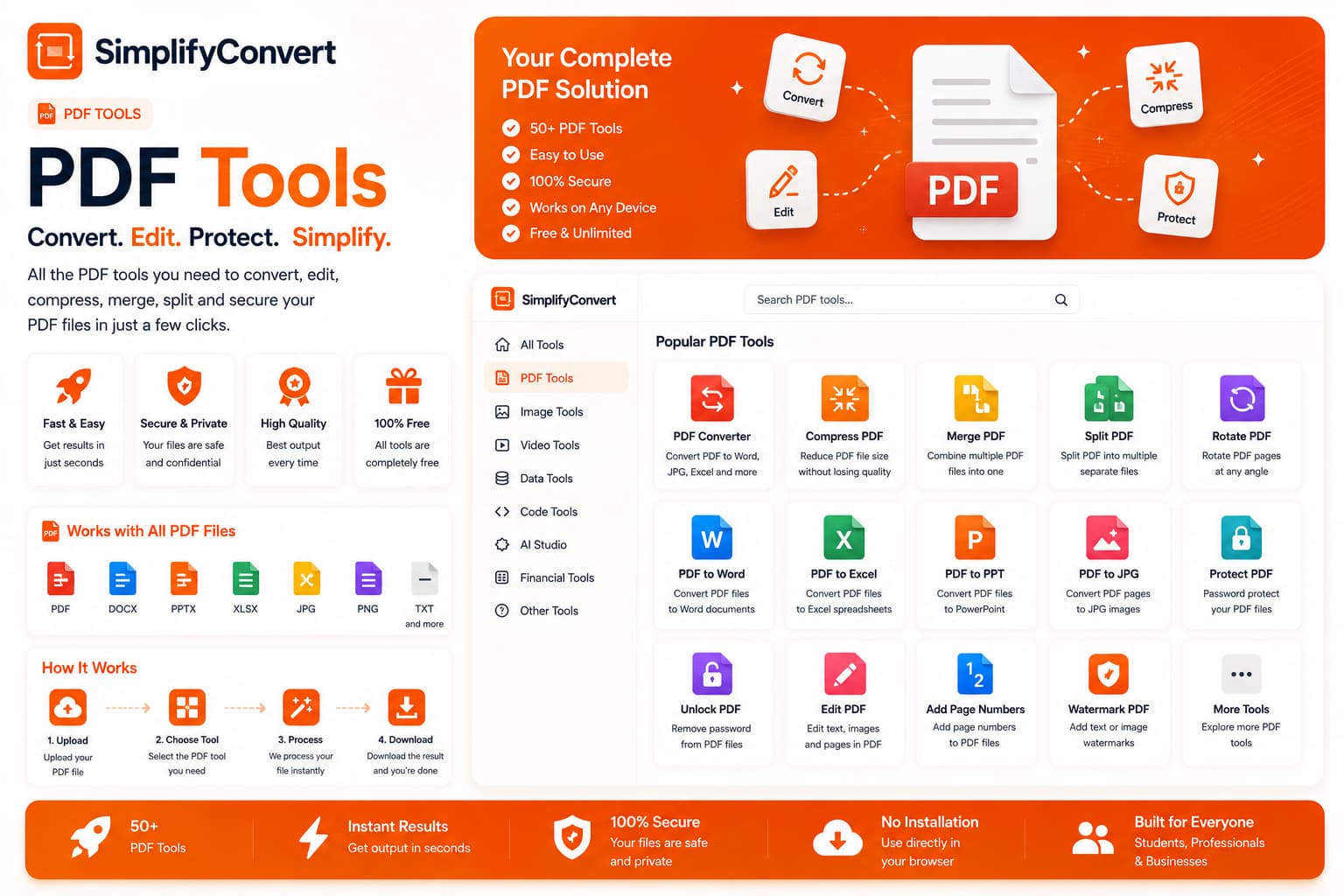
Different PDF problems need different PDF tools
“I need to change this PDF” sounds like one task, but it can describe half a dozen different problems. Sometimes the pages need reorganizing. Sometimes the document is too large to send. In other cases, you need to add content, sign a form or turn another file into a PDF.
Choosing the right PDF tool starts with identifying what should be different when you are finished.
Merge PDFs when separate files belong together
Imagine receiving an application form, supporting document and receipt as three separate PDFs when the recipient expects one attachment. That is a merging problem. The content itself does not need rewriting; the documents simply need to become one file in the correct order.
A dedicated merge workflow is usually cleaner than printing files back to PDF or copying their contents into another application.
Split a PDF when you only need part of it
The opposite situation is just as common. A long PDF may contain one chapter, invoice or form that needs to be shared separately. Splitting lets you create a smaller document from selected pages without changing the original.
Compress a PDF when file size is the actual problem
If a document opens correctly but is too large for an upload limit or email attachment, changing its format may be unnecessary. Compression targets file size while trying to keep the document useful.
Results vary because PDFs can contain very different material. A document made mostly of text behaves differently from a scanned PDF containing a full-page image on every page.
Edit when the visible page itself needs to change
Editing is different from organizing pages. If you need to add text, place a shape, draw on a page, add an image, highlight an area or apply a signature, you need an editor rather than a merger or converter.
SimplifyConvert's Edit PDF workspace is intended for those interactive page-level changes.
Convert when another format is genuinely required
Conversion makes sense when the destination application or workflow requires a different file type. The important question is what needs to survive the conversion. Text, images, page layout and editable structure do not always translate perfectly between fundamentally different formats.
Signing and editing are related, but not identical
Adding a signature is a focused document task. If the rest of the PDF is already correct, you should not need to rebuild the document just to place a signature. After signing, check its position and size before downloading the finished file.
Scanned PDFs need special attention
A PDF page that looks like text to your eyes may actually be a scanned image. That affects searching, copying and editing. OCR workflows are designed to recognize characters inside those images, but recognition can be affected by scan quality, unusual fonts, handwriting, skewed pages and low contrast.
Match the problem to the operation
| Situation | Likely operation |
|---|---|
| Several PDFs should become one file | Merge |
| You only need selected pages | Split or extract |
| The PDF exceeds a file-size limit | Compress |
| Visible page content needs changing | Edit |
| A signature needs to be placed | Sign |
| A scanned page needs searchable text | OCR |
Explore the PDF collection
Once you know what needs to change, browse SimplifyConvert PDF Tools and choose the workflow that directly matches that task. Starting with the problem instead of repeatedly converting the document usually produces a simpler workflow.