
Video guide
Video Tools Explained: A Practical Guide to Converting and Working With Video
Understand common video tasks such as conversion, compression and editing, and learn what resolution, bitrate and format mean for the finished file.
Video processing becomes easier when you know what should change
Video files can look simple from the outside: an MP4 on your phone, a clip from a camera, or a recording you want to share. Underneath, though, a video combines pictures, timing, compression and usually audio. That is why changing a video often involves more decisions than changing an image or document.
You do not need to understand every technical detail before using a video tool. It helps, however, to know which part of the file is causing the problem.
Convert a video when compatibility is the problem
Conversion is useful when the application, website or device receiving your video expects a different format. The visible content may remain the same while the file is encoded into another container or codec.
Before converting, check what the destination actually accepts. Changing a format simply because another extension is familiar can add an unnecessary processing step.
Compress when the file is too large to send or upload
A five-minute video can easily be much larger than a photograph or PDF. If upload limits or transfer time are the problem, compression is often more relevant than conversion.
Video compression usually involves a tradeoff. Lower bitrates can reduce size, but pushing them too far may produce blockiness, smearing or a loss of fine detail, particularly in scenes with lots of movement.
Resolution is only one part of video quality
A 1080p video is not automatically better than every 720p video. Bitrate, codec efficiency and the quality of the original recording also matter. A heavily compressed high-resolution clip can look worse than a cleaner lower-resolution version.
Reducing resolution can still be useful when the destination does not need the original dimensions. A small embedded website video, for example, may not benefit from carrying the same number of pixels as a large-screen master copy.
Trimming removes time; cropping removes part of the frame
These two operations are easy to confuse. Trimming shortens a video by removing time from the beginning, end or another section. Cropping keeps the duration but removes part of the visible picture.
If your goal is simply to remove an unwanted intro or ending, trimming is the more direct operation.
Frame rate matters most when motion matters
Frame rate describes how many individual frames are shown each second. Higher frame rates can make motion look smoother, but they also increase the amount of visual information a file may need to store.
Changing frame rate cannot recreate motion information that was never captured. Increasing a low-frame-rate source does not magically turn it into a genuinely high-frame-rate recording.
Audio contributes to the final file too
Video compression discussions often focus on the picture, but the audio track also has a codec and bitrate. For speech-heavy clips, sensible audio settings can reduce size without noticeably affecting the viewing experience.
Match the operation to the problem
| Problem | Operation to consider |
|---|---|
| The destination does not accept the format | Convert |
| The file is too large | Compress |
| The video contains extra time | Trim |
| The visible frame includes unwanted areas | Crop |
| The destination needs smaller dimensions | Resize or reduce resolution |
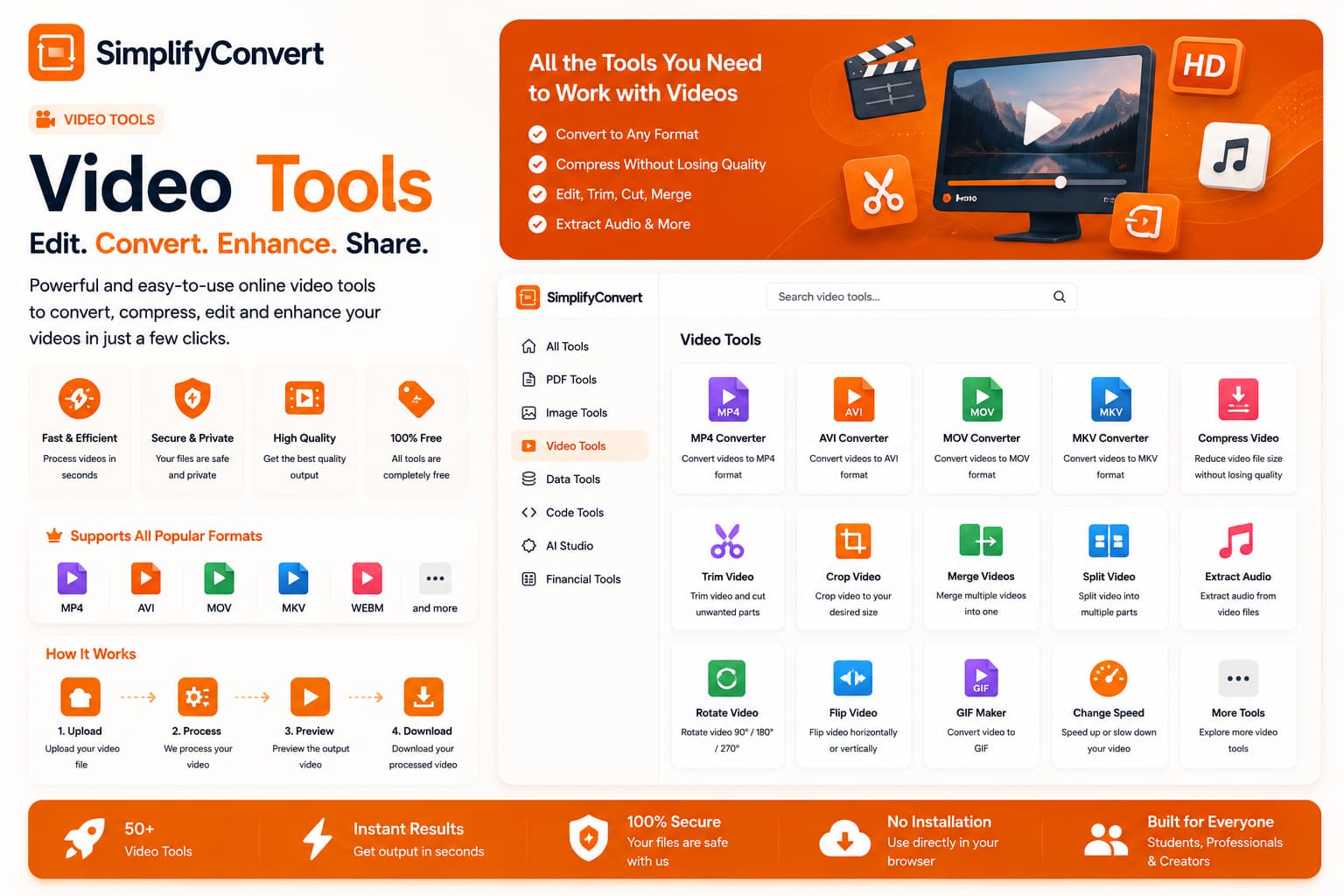
Explore SimplifyConvert Video Tools
Once you know whether the issue is compatibility, file size, duration or another part of the video, browse SimplifyConvert Video Tools and choose the operation that directly addresses it.